Sooner or later one shows up: a file called README.md. It came out of a GitHub download, an Obsidian folder, an export from some note-taking app, or as an email attachment from someone who clearly assumed you would know what to do with it. You double-click — and your computer asks which program should open it.
An .md file is an ordinary text file. No proprietary format, no required software, no license key. Any editor your operating system already ships with will open it. The .md stands for Markdown — a small set of conventions for writing structure (headings, lists, links) directly into the text, without formatting buttons and without making the file unreadable in the process.
This article explains the whole thing from scratch: what is inside, how to open one, which characters do what, why the same file can look different in two places — and when you should reach for something else entirely. If you want to try it right now: paste the contents into our Markdown editor and you will immediately see how the file was meant to look.
The short answer, in five sentences
.mdis the file extension for Markdown documents.- The contents are plain text — the same kind of data as in a
.txtfile. - Formatting comes from characters inside the text itself:
# Heading,**bold**,- list item. - Software that understands Markdown turns those characters into a typeset view with real headings and bullet points.
- Software that does not understand them still shows you the complete text — nothing is lost, it just looks raw.
Point five is the whole idea, and the reason the format exists at all.
Why “just text” is the entire trick
Open a .docx file in a basic text editor. You get garbage: binary noise, XML fragments, mangled characters. The reason is that a Word file is a ZIP archive full of XML documents, and without a program that knows that structure, it is unusable.
Open a .md file in the same editor. You get your text. Perhaps with more hash marks and asterisks than you expected, but entirely readable. Four consequences follow, and each is worth more in practice than it sounds:
It will still be readable in twenty years. Formats die. Anyone who still has a .wpd file from the WordPerfect era or an old AppleWorks document knows the feeling: the content exists but is no longer reachable. Plain text does not have that problem. As long as there are computers that can display text files — and that is not about to change — you can get at the content.
It can be versioned and diffed. Git and similar systems work line by line. With a text file, a tool can tell you exactly that line 47 changed “three days” to “five days.” With a Word file, the same tool can only tell you that the file changed. That is why every serious piece of software documentation lives in Markdown rather than an office format.
There is no vendor lock-in. No company owns Markdown, no subscription can lapse, no new version will refuse to open your old files. If your note-taking app shuts down tomorrow or triples its price, you pick up your folder of .md files and move. That is exactly why Obsidian and similar tools became popular: not because of their features, but because the data is yours and sits in a format every other program can read too.
It is tiny. This article as a Markdown file is roughly 40 kilobytes. As a Word document with the same content, easily ten times that, and with embedded images a multiple of that again.
The price: you cannot choose a typeface, a text color, margins, or positioning. Markdown describes what something is (“this is a second-level heading”), not how it looks. Whether that heading renders as 24-point Helvetica in navy is decided by whatever program displays it. Some people experience that as freedom, others as loss of control. Both reactions are legitimate — more on that below.
Where the name comes from
Markdown was created in 2004 by John Gruber, in close collaboration with Aaron Swartz. The idea was a reaction to a specific annoyance: anyone writing for the web back then had to type HTML — <h2>Heading</h2>, <strong>bold</strong>, <ul><li>item</li></ul>. Precise, but constantly in the way while you are trying to think.
Gruber’s guiding principle was unusually modest: a Markdown document should look as though it had not been marked up at all. The notation should follow the conventions people already used in email — asterisks around a word for emphasis, hyphens for a list, a row of equals signs under a heading. Nobody had to learn a new language; they just had to write down what they were doing intuitively anyway.
The name is a joke. Markup languages mark text up; Gruber’s deliberately reduced version marks it down.
Aaron Swartz, who worked on the original specification and later contributed atx-style headings, deserves his own footnote in history — RSS, Reddit, Creative Commons, and his death in 2013 under the pressure of a wildly disproportionate prosecution. That part of his work now sits inside nearly every developer tool on earth is a quiet memorial.
.md, .markdown, .mdown, .mkd — what is the difference?
In practice: none. They all denote the same format. The variety is historical, because there was never an official ruling. .md won and is the right choice today. .markdown still shows up in older projects; .mdown, .mkd and .mkdn are curiosities from the early days.
There is one real exception:
.mdx is a different thing. MDX is Markdown that can additionally embed JavaScript components. An .mdx file may therefore contain lines like import Chart from '../components/Chart.astro' and, in the middle of the prose, <Chart data={values} />. As a text file it stays readable, but an ordinary Markdown viewer will display those lines as nonsense text instead of a chart. MDX requires a build step. This very article is an MDX file, as it happens.
Related but not identical: R Markdown (.Rmd) and Quarto (.qmd) from the statistics world, which mix executable code with prose, and .ipynb (Jupyter notebooks), which are JSON internally but contain Markdown cells.
How do I open an .md file?
This is the question that brings most people here. The answer depends on what you want: read it quickly, view it properly formatted, or edit it yourself.
The fastest route, no installation
Paste the contents into our Markdown editor. Open the file in any editor, select all, paste — the raw text sits on the left, the rendered version on the right. From there you can export straight to HTML or PDF. The tool runs entirely in your browser, without a sign-up, and your file never leaves your machine. For “I just need to see what is in here once,” this is the shortest path.
Windows
Notepad. Right-click the file → Open with → Notepad. Always works, shows the raw text. Fine for a quick look.
The most common problem: everything on one line. If Notepad shows the entire document as a single endless line, that is not Markdown’s fault — it is line endings. Windows traditionally ends lines with two characters (CR+LF), Linux and macOS with one (LF). Files from GitHub or a server usually carry only LF. Notepad has handled this since Windows 10; older builds do not. The fix is to use one of the alternatives below, and the problem disappears immediately.
Notepad++ (free, lightweight) gives you syntax highlighting and copes with any line ending. A good choice if you mostly want to read and occasionally edit.
Visual Studio Code (free) is the developer default and slightly overqualified for this — but very convenient: Ctrl + Shift + V opens a rendered preview right next to the file. Nothing to install, it is built in.
macOS
TextEdit is preinstalled and opens .md files, with one catch: it sometimes flips into rich-text mode and wants to save the file as .rtf. Under Settings → Format → Plain Text you can turn that off permanently. Do it before you edit anything, or you will end up with a different format than you started with.
Quick Look is the underrated trick: select the file in Finder and hit the space bar. On current macOS versions you get an instant preview without opening anything at all.
MacDown and Typora are comfortable dedicated editors; Typora hides the syntax characters as you type and shows the formatting directly, a transition so smooth that plenty of people learn Markdown through it without noticing. Note that Typora has been paid software since version 1.0 (one-time purchase).
Linux
Any desktop editor opens the file: gedit, kate, nano, vim. From the terminal there are nicer options:
# Show it raw
cat README.md

# Rendered in the terminal, with colors
glow README.md

# Convert to HTML
pandoc README.md -o readme.html
glow is a small tool that typesets Markdown right in the terminal — surprisingly pretty, and genuinely useful on headless servers.
The browser
Chrome and Firefox both have “Markdown Viewer” extensions that render local .md files when you drag them into a browser window. In Chrome you must grant the extension access to file URLs in its settings, otherwise nothing happens at all — that is the single most common point of confusion with these extensions.
Note-taking and knowledge tools
Obsidian (free for personal use) is the best-known tool that works directly on a folder of .md files. It creates no database; your “vault” is simply a directory on your disk. If you have inherited an entire collection of .md files, Obsidian is the most pleasant way to search and connect them.
Joplin, Logseq, Zettlr and MarkText follow the same principle with different emphases. Notion and Bear can import Markdown but store it differently internally — there you give up part of the “your files are yours” benefit.
The syntax: everything that matters, with examples
Markdown takes about ten minutes to learn. Here is everything you need day to day.
Headings
# Heading 1
## Heading 2
### Heading 3
The number of hash marks sets the level, up to six. Important: there must be a space after the hash. #Heading without the space stops working in most modern renderers and simply stays as text. By a wide margin, this is the most common beginner mistake.
Bold, italic, strikethrough
*italic* or _italic_
**bold** or __bold__
***bold and italic***
~~strikethrough~~
Two asterisks for bold, one for italic. The underscore variant does the same thing but has a trap: inside a word containing underscores (file_name_here) some renderers read it as italics. Get into the habit of using asterisks and you will never meet that problem.
Lists
- First item
- Second item
  - Nested item
  - Another one
- Third item

1. First step
2. Second step
3. Third step
For bullets, -, * and + are interchangeable; pick one and stick to it within a document. Numbered lists have a nice detail: the actual numbers do not matter. Write 1. three times and it still renders as 1, 2, 3. Handy when you insert a step later.
For nesting, use two spaces of indentation (some dialects want four). Tabs usually work too, but not everywhere — another source of silent failures.
Task lists
- [x] File opened
- [x] Syntax understood
- [ ] Wrote my own document
This is not original Markdown syntax but a GitHub extension. It works on GitHub, in Obsidian, in many editors — but not universally. Where it is unsupported you simply see [x] as literal text.
Links and images
[Link text](https://example.com)
[Link with tooltip](https://example.com "Shown on hover")

The only difference between a link and an image is the leading exclamation mark. For images, the text in square brackets is the alt text — what screen readers announce and what appears if the image fails to load. Leaving it out is convenient and bad; it is the only accessibility feature Markdown offers at all.
Code
For a single expression inline: `value` with single backticks. For whole blocks, three backticks, optionally with a language:
```python
def greet(name):
    return f"Hello, {name}"
```
The language tag drives syntax highlighting. It is optional, but it is the difference between “readable” and “grey slab.”
Blockquotes
> A quoted paragraph.
> It can span several lines.
>
> > And quotes can be nested.
Tables
| Format | Binary? | Diffable | Needs software |
|--------|---------|----------|----------------|
| .md    | no      | yes      | no             |
| .txt   | no      | yes      | no             |
| .docx  | yes     | no       | yes            |
| .pdf   | yes     | no       | yes            |
The second row of dashes is mandatory — without it no renderer recognises a table and you just get text with pipes in it. That is the number one reason a table “does not work.” Colons control alignment: :--- left, :---: centred, ---: right.
The columns do not have to line up visually in the source. Only the pipes matter. Tidy source is still nicer to touch a year later — the table builder in our Markdown editor generates the skeleton in aligned form for you.
Horizontal rules and line breaks
Three hyphens on their own line (---) produce a horizontal rule.
Line breaks are where Markdown annoys the most people. A single Enter produces no visible break — the text simply continues in the rendered output. For a real break inside a paragraph there are two options: two trailing spaces at the end of the line (invisible, hence notorious) or a <br>. For a new paragraph, leave a completely blank line. Anyone trying to write an address on separate lines and wondering why it all collapses into one has arrived here.
Where you keep running into .md files
Markdown went from a blogger’s utility to the default notation for structured text. If you are wondering why you suddenly see it everywhere: you did not suddenly start seeing it, it has been there for a long time.
GitHub and every README. Every software project has a README.md in its root, and GitHub renders it automatically on the project page. The same goes for CONTRIBUTING.md, CHANGELOG.md, LICENSE.md. If you have just met your first .md file, odds are it came from there.
Technical documentation. MkDocs, Docusaurus, Sphinx, GitBook, Read the Docs — the entire modern documentation landscape works on Markdown files stored in the same Git repository as the code. There is a practical reason for that: the docs change in the same step as the software, by the same people, under the same review.
Static site generators. Astro, Hugo, Jekyll, Eleventy, Next.js, Gatsby: articles live as .md or .mdx files and the generator turns them into HTML. This page works exactly that way — the text you are reading was a Markdown file with a YAML block on top before it was built. If you want to see how that kind of structure works under the hood, we went through it in detail using dynamic routes in Next.js.
AI chats. This is why Markdown is having a second moment: ChatGPT, Claude and Gemini all answer in Markdown. The headings, bullet lists and code blocks you see in the web interface are nothing but rendered Markdown. Copy such an answer into Word and suddenly you have **asterisks** and ## hashes in your document — the raw form the interface had been translating for you. That is exactly what our Markdown editor is for: paste, view, export cleanly as HTML or PDF. Why language models emit Markdown in the first place is something we cover with concrete examples in what Claude actually is.
Note-taking apps. Obsidian, Logseq, Joplin and Zettlr each store one .md file per note. Exports from Notion or Bear also produce Markdown — anyone who has unzipped a Notion archive knows the folder full of .md files with long IDs in their names.
Chat platforms. Discord, Slack, Element and Teams understand a subset: **bold**, *italic*, `code`, > quote. If you have ever typed an asterisk in Discord and accidentally gone italic, you have used Markdown without knowing it.
Jupyter notebooks. The text cells between the code are Markdown cells. That is why you can write headings and formulas in a notebook without leaving the environment.
Developer tooling. Even the configuration files that AI coding assistants read are usually Markdown — AGENTS.md, CLAUDE.md and friends. We described that in our comparison of AI coding tools; the pattern is the same everywhere: when a tool needs human-readable configuration, it ends up being Markdown.
The dialects: why the same file looks different elsewhere
This is where things get messy, and honestly it is the most irritating part of Markdown.
Gruber published a description and a Perl script in 2004, but no formal specification. Plenty of questions were left open: what happens with a list that has no blank line above it? How deep must indentation be? What about nested emphasis? Every implementation answered differently. The result is a format that behaves identically 95 percent of the time and surprises you in the remaining five.
CommonMark is the attempt to clean that up: a precise specification with hundreds of test cases, started in 2014 by John MacFarlane, Jeff Atwood and others. It removed the worst ambiguities and underpins most modern renderers. CommonMark, however, has no tables, no task lists and no strikethrough — those are all extensions.
GitHub Flavored Markdown (GFM) is CommonMark plus exactly those extensions: tables, task lists, strikethrough, automatic linking of bare URLs, and syntax highlighting in code blocks. In practice GFM is what most people mean when they say “Markdown,” because GitHub sets the tone.
MDX extends Markdown with components and therefore needs a build step.
Other dialects: Obsidian adds [[wiki links]] and ==highlighting==. Pandoc knows footnotes, definition lists and math. Reddit, Discord and Stack Overflow each maintain their own subsets with their own quirks.
What this means for you: if a file looks different on your machine than on the sender’s, this is almost always why. For anything you pass around, stick to the common denominator — headings, emphasis, lists, links, images, code, quotes. That works everywhere. Tables work almost everywhere. Anything beyond that is a gamble unless you know what your reader will open it with.

.md vs .docx vs .txt vs .rtf — an honest comparison
| Criterion | .md | .txt | .rtf | .docx |
|---|---|---|---|---|
| Plain text | yes | yes | partly | no |
| Structure machine-readable | yes | no | yes | yes |
| Readable without software | yes | yes | barely | no |
| Meaningfully versionable | yes | yes | hardly | no |
| Layout control | none | none | limited | full |
| Page breaks | no | no | yes | yes |
| Comments & track changes | no | no | rudimentary | yes |
| Images embedded | no (linked) | no | yes | yes |
| Typical file size | tiny | tiny | medium | large |
.txt is the lowest common denominator: text with no structure whatsoever. Perfectly adequate for a shopping list. The moment you need headings or lists that software can also recognise as such, Markdown is strictly better at identical robustness.
.rtf is a Microsoft halfway house from the late eighties: formatting, yes, but in a syntax nobody wants to read. Today it is essentially a legacy format.
.docx loses to Markdown on almost every technical axis and wins decisively on one practical one: it can do layout. Exact page breaks, headers and footers, mail-merge fields, margin comments, tracked changes, a table of contents with page numbers. Markdown does none of that and never will, because it was not built for it.
When Markdown is the wrong choice
This belongs in an honest answer. Do not use Markdown when:
- The layout is part of the message. A flyer, an annual report with corporate design, a brochure. Markdown has no concept of position on a page.
- Exact page breaks matter. Contracts, fixed-length proposals, anything containing “see page 4.” Where page 4 falls in Markdown depends on whatever renders it.
- Someone needs to comment and track changes. The Word review workflow with margin comments and coloured revisions cannot be recreated in a text file. Git does the same job better on the substance — but only if everyone involved can use Git. For a lawyer reviewing a contract draft, that is not a realistic assumption.
- Mail merge or database fields are involved. That is what Word is built for.
- Your recipients are not technical. Sending an
.mdfile to someone who has never seen one is not delivering a document, it is assigning homework. Convert it first.
The reverse holds just as clearly: for notes, documentation, blog posts, README files, meeting minutes, knowledge bases and anything maintained over years, Markdown is the better choice. Rule of thumb: if the content is the point, use Markdown. If the appearance is the point, use a layout program.
Converting: .md to HTML, PDF or Word
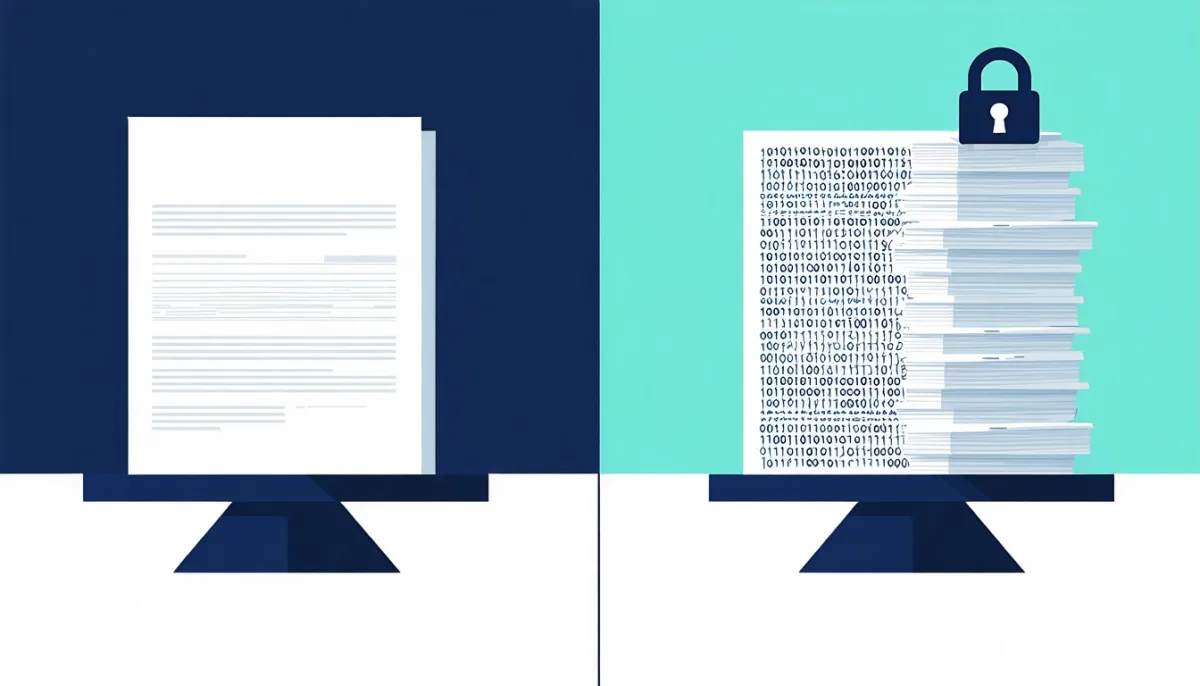
Eventually the file has to become the format your recipient expects. There are three routes, depending on how much effort you are willing to spend.
The convenient browser route
Paste the content into our Markdown editor and export from there: as a .md file, as a complete standalone HTML document with readable default styling, or as a PDF through the print function. No upload, no installation, no account — the whole thing runs in your browser tab. For one-off conversions and for anything you would rather not hand to a stranger’s server, this is the right call.
Pandoc for serious conversion
Pandoc is the Swiss army knife of document conversion and handles Markdown in both directions, plus HTML, DOCX, ODT, LaTeX, EPUB, PDF and dozens more.
# To standalone HTML
pandoc document.md -s -o document.html

# To Word
pandoc document.md -o document.docx

# To PDF (requires a LaTeX installation)
pandoc document.md -o document.pdf

# The other way: a Word file to Markdown
pandoc report.docx -t markdown -o report.md

# With table of contents and custom stylesheet
pandoc document.md -s --toc --css=style.css -o document.html
That reverse direction is the underrated one: if you need to move a pile of old Word documents into a documentation system, pandoc and a shell loop get you remarkably far. Do not expect perfection — merged table cells and embedded objects will not survive.
For PDF output Pandoc needs a LaTeX environment, which on a fresh machine is a sizeable download. If that puts you off, go via HTML and print from the browser instead. For most purposes the result is equivalent.
Straight from your editor
VS Code exports directly with the “Markdown PDF” extension, Obsidian has Export as PDF built in, and so does Typora. If you are already working in one of those, that is the shortest path.

Common pitfalls
The mistakes practically everyone makes once — collected here so you can skip them.
The missing line break. You press Enter, but the preview keeps running the text together. Markdown treats a single newline as a space. Fix: a blank line for a new paragraph, two trailing spaces for a break inside one. That the solution consists of two invisible characters is one of the very few genuinely bad design decisions in Markdown.
The table without a separator row. No row of dashes under the header means no table. It looks like one in the source and is not one in the output.
The missing space after the hash. ##Heading is not a heading. ## Heading is.
Wrong indentation in nested lists. Two spaces per level, consistently. Mix tabs and spaces and the rendering becomes unpredictable — and you cannot see which is which by looking at the source. Most editors can render whitespace visibly; for stubborn list problems that is the fastest route to the cause.
Special characters formatting when they should not. If you want a literal *asterisk*, put a backslash in front: \*asterisk\*. The characters that need escaping are mainly *, _, #, `, [, ] and | — the last one especially inside table cells, where an unescaped pipe splits the cell in two.
HTML inside Markdown. Most implementations allow embedded HTML. That is the escape hatch for things Markdown cannot express. Two caveats: some systems strip HTML for security reasons, and Markdown syntax inside an HTML block often stops being processed.
The file extension is wrong. When Windows hides extensions for known file types, your notes.md quietly becomes notes.md.txt on save. Turn on file name extensions in Folder Options — it saves a surprising amount of head-scratching.
Images disappear when you move the file. Markdown does not embed images, it links them. Copy a file containing  somewhere else without bringing the images folder along and the picture is gone. That is not a bug, it is the price of small files — but it catches everyone out once.
Is Markdown a programming language?
No, and the question comes up often enough to deserve a straight answer. Markdown is a markup language: it describes structure, it computes nothing. There are no variables, no conditionals, no loops. An .md file cannot execute anything and therefore cannot break anything.
That incidentally makes it safe to open. An .md file from an unknown source is as harmless as a .txt file — unlike a Word document with macros. The only caution concerns links inside it: a Markdown link can display any text at all while pointing somewhere else, exactly like in an email. But the file itself does nothing.
Frequently asked questions
What exactly is an .md file?
A plain text file written in Markdown — a simple notation for structure. The .md extension tells software that in this file, #, * and - in certain positions mean heading, emphasis and list. You can open it with any text editor; a Markdown-capable program additionally shows it formatted.
How do I open an .md file on Windows?
Right-click → Open with → Notepad always works and shows the raw text. For a formatted view use Visual Studio Code (Ctrl + Shift + V opens the preview), Notepad++ or Obsidian. Without installing anything: copy the contents into our Markdown editor.
Can I open an .md file with Word?
Word will open it and display the text along with every syntax character, unformatted — ## Heading just sits there as literal text. If you need a real Word version, convert first: pandoc file.md -o file.docx, or use the HTML export from our editor and paste that into Word. And going the other way: do not save from Word back to .md, or depending on settings you end up with a broken hybrid.
What is the difference between .md and .txt?
The contents of both are plain text; technically they are interchangeable. The difference is expectation: with .md, software assumes the characters in the text describe structure and can render it. A .txt file always stays unformatted. You can rename a .md file to .txt without losing any data — you only lose the rendered view.
Why does my .md file look so strange in the editor?
Because you are looking at the source. The hashes, asterisks and square brackets are the markup — a program that understands Markdown turns them into headings, bold text and links. Notepad cannot. Use a Markdown viewer or our online tool and you will see the intended version. If on top of that the whole text is stuck on one line, that is Unix line endings, which older editor builds cannot handle.
Is Markdown the same as HTML?
No, but they are related. Markdown is a heavily simplified notation that gets converted into HTML. ## Title becomes <h2>Title</h2>. Markdown is for writing, HTML is for rendering in a browser. That is also why Markdown can express only a fraction of what HTML can — and precisely why it takes ten minutes to learn.
Do I need to learn Markdown to read an .md file?
No. The text is fully readable in raw form; that is the entire point. The markup barely interferes with reading because it was deliberately chosen not to. If the characters still bother you, open the file in a preview and they disappear.
Can an .md file contain images?
Not directly. Markdown references images () but does not store them inside the file. The images sit next to it as separate files and must travel with it when you move or send it. Technically you can embed images as Base64 data, but that bloats the file enormously and is not supported everywhere.
What is the difference between .md and .mdx?
.mdx is Markdown plus JavaScript components. In an MDX file you can drop interactive elements into the middle of your prose — charts, calculators, buttons. The price: MDX needs a build process and cannot simply be displayed by an arbitrary Markdown viewer. For ordinary text, .md is enough; MDX only pays off when you genuinely need interactive parts.
How do I convert an .md file to PDF?
Three ways: through our Markdown editor using your browser’s print function, via pandoc file.md -o file.pdf on the command line (requires a LaTeX installation), or straight from an editor like Obsidian, Typora or VS Code with the right extension. For a single document the browser route is fastest; for a hundred documents in a loop there is no way around Pandoc.
Does Markdown support math or footnotes?
Not in the original standard, but in many dialects. Footnotes ([^1]) work in Pandoc, GitHub and Obsidian. Math in LaTeX notation ($E = mc^2$) renders on GitHub, in Obsidian, in Jupyter and in most documentation systems. Only rely on it if you know where the file will end up — otherwise your reader sees the raw notation.
Conclusion
An .md file is the least spectacular file type you can have on your computer: text, with a handful of characters for structure. That lack of drama is exactly the point. It opens anywhere, edits with any tool, diffs line by line, does not become worthless when software changes hands, and belongs to no vendor.
If someone sent you an .md file: open it with VS Code, Obsidian or any editor at all — or paste the contents into our Markdown editor and read the rendered version there. Converting to HTML or PDF happens on the same page.
If you are considering writing in it yourself: start with five characters — # for headings, ** for bold, - for lists, []() for links, ` for code. That covers ninety percent of everyday use. You will pick up the rest when you need it.
And if your document needs precise layout, margin comments or fixed page breaks, then Markdown is not the right tool, and that is entirely fine. A format that can do everything does nothing especially well. Markdown does one thing very well — writing text down so that it is still there in twenty years, and understood by every machine in between.